> ## Documentation Index
> Fetch the complete documentation index at: https://docs.supercycle.com/llms.txt
> Use this file to discover all available pages before exploring further.
# Membership overview
> Learn about running membership rental plans on your store
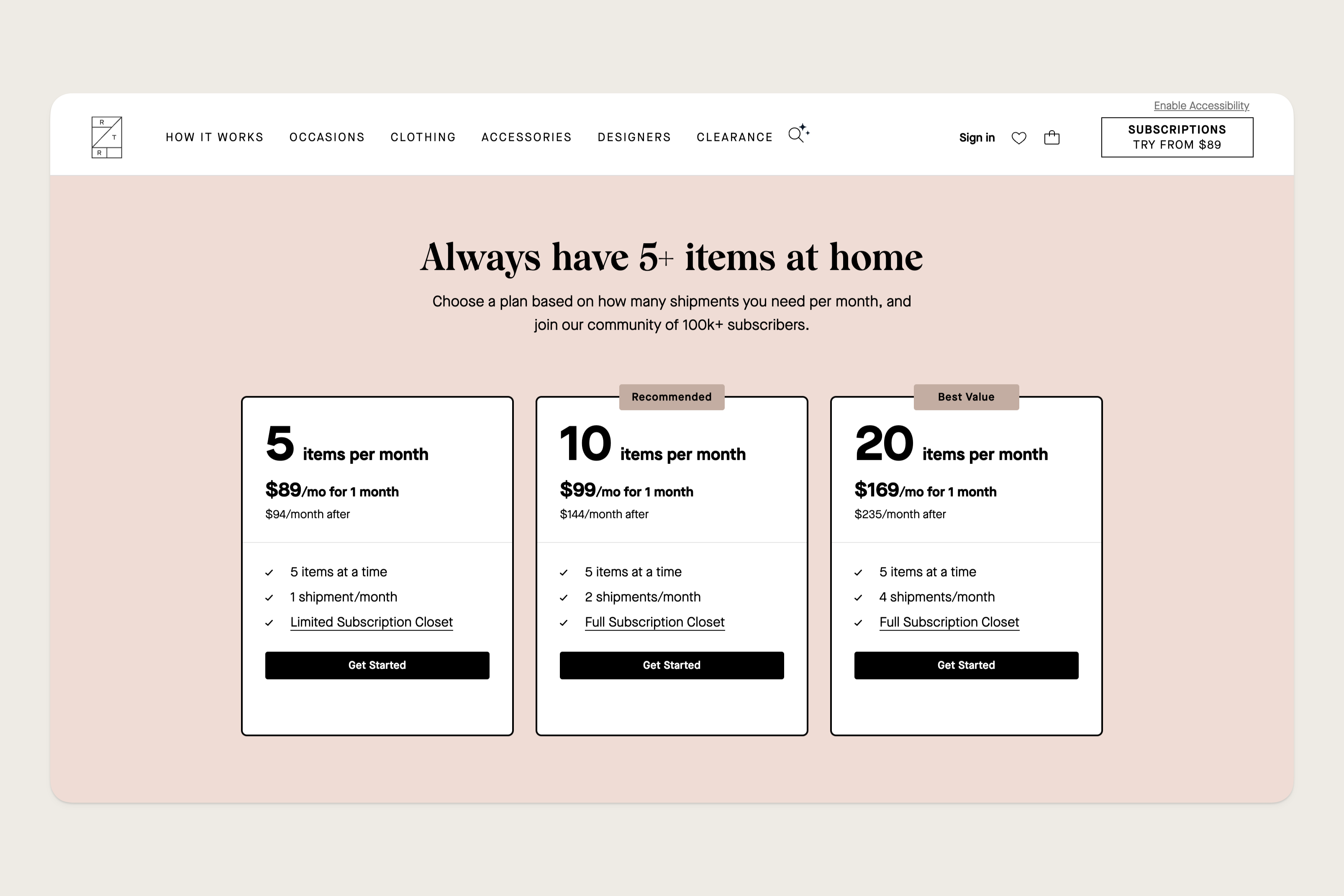
Membership rental gives your customers access to a catalogue of items for one recurring price. This works well for products where a customer's needs likely change over time (like childrenswear or maternity wear).
 **How memberships work**
Memberships are created at the store level. You set up membership plans for your entire store, then choose which products customers can rent with their membership credits by enabling membership on each product individually. Customers can hold more than one membership — buying another plan adds a new membership alongside any they already hold.
With Supercycle, you can use an item-based or credit-based membership system. If you opt for credit-based you'll be able to set the credit cost of items to customers at the variant level, which works well if you want to include large and small items (like dresses and accessories) in your membership.
Customers can swap their items at an interval you determine. Once they've returned an item, they'll be able to rent a new one.
## How customers enroll
There are two ways customers can discover and enroll in memberships:
**Option 1: Membership page first**
* Customer visits a page with the membership block (displaying your plans)
* Browses available plans and selects one
* Completes enrollment and receives credits
* Navigates to eligible products and rents using credits
**Option 2: Product page first**
* Customer finds a product eligible for membership
* Sees "Become a member" option on the product page
* Clicks through to the membership enrollment page
* Enrolls in a plan and returns to rent the product
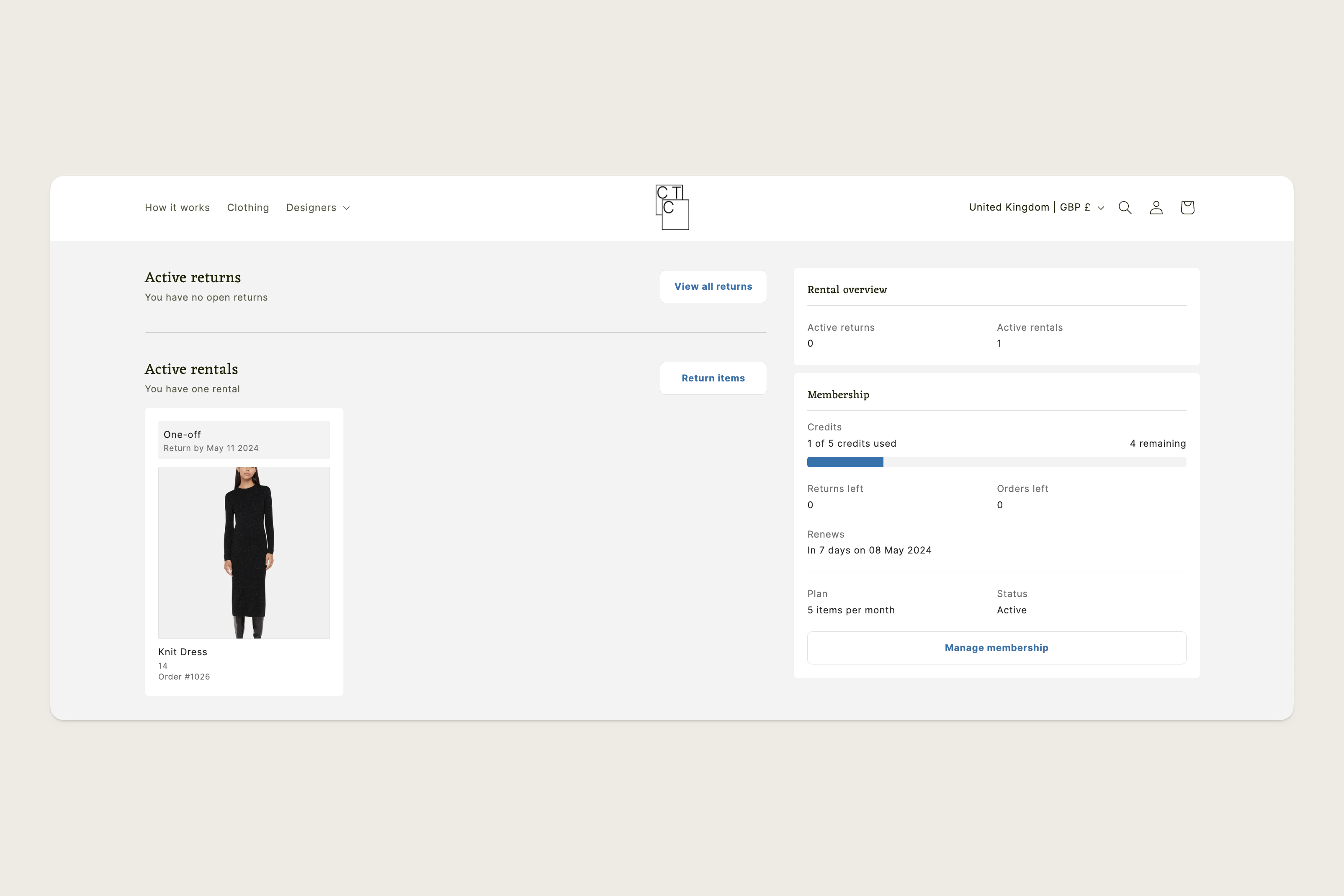
After enrollment, customers can manage their membership through the [customer portal](/documentation/online-store/portal). When a customer holds more than one membership, they choose which membership pays on the [product page](/documentation/methods/membership/product-setup#choose-a-membership-on-the-product-page). You can view and manage each membership from the customer page in Supercycle admin — see [Managing memberships](/documentation/methods/membership/managing-memberships).
## How staff enroll a customer
Your team can also sign a customer up, without sending them to the storefront.
### On a draft order
On the draft order, select **More actions** > **Add cycles**.
Pick **Membership**, then **New membership plan**.
Choose the plan, and its billing option when it offers more than one. The plan is added as its own line, so it can be the only thing on the order.
### At the counter
Membership stays grayed out until the cart has a customer.
Tap **Cycles**, then choose **Membership**.
See [POS overview](/documentation/point-of-sale/pos-overview) for the full flow, including taking payment.
Either way the plan is paid for as the order is placed, and the membership is created with its credits ready once the order is paid. You can add items to that membership on the same order or a later one.
A customer with no card on file can still be put on a plan. Their charges are raised as normal; you collect them yourself until a card is added.
## Items or credits
A customer chooses from a set of membership plans. Depending on your setup, they receive either an item or credit limit.
At any one time, a customer can have up to their limit in items/credits. When they're ready to change items, they can return them and receive their credits back to spend on future items. For example, if a customer rents a 2-credit item and returns it, those 2 credits are added back to their account immediately.
The frequency they can swap (return and order new) items depends on the plan settings.
Memberships are billed on whatever interval you choose, with a minimum of 1 month. You may choose to bill memberships yearly to lock in revenue, for example.
**How memberships work**
Memberships are created at the store level. You set up membership plans for your entire store, then choose which products customers can rent with their membership credits by enabling membership on each product individually. Customers can hold more than one membership — buying another plan adds a new membership alongside any they already hold.
With Supercycle, you can use an item-based or credit-based membership system. If you opt for credit-based you'll be able to set the credit cost of items to customers at the variant level, which works well if you want to include large and small items (like dresses and accessories) in your membership.
Customers can swap their items at an interval you determine. Once they've returned an item, they'll be able to rent a new one.
## How customers enroll
There are two ways customers can discover and enroll in memberships:
**Option 1: Membership page first**
* Customer visits a page with the membership block (displaying your plans)
* Browses available plans and selects one
* Completes enrollment and receives credits
* Navigates to eligible products and rents using credits
**Option 2: Product page first**
* Customer finds a product eligible for membership
* Sees "Become a member" option on the product page
* Clicks through to the membership enrollment page
* Enrolls in a plan and returns to rent the product
After enrollment, customers can manage their membership through the [customer portal](/documentation/online-store/portal). When a customer holds more than one membership, they choose which membership pays on the [product page](/documentation/methods/membership/product-setup#choose-a-membership-on-the-product-page). You can view and manage each membership from the customer page in Supercycle admin — see [Managing memberships](/documentation/methods/membership/managing-memberships).
## How staff enroll a customer
Your team can also sign a customer up, without sending them to the storefront.
### On a draft order
On the draft order, select **More actions** > **Add cycles**.
Pick **Membership**, then **New membership plan**.
Choose the plan, and its billing option when it offers more than one. The plan is added as its own line, so it can be the only thing on the order.
### At the counter
Membership stays grayed out until the cart has a customer.
Tap **Cycles**, then choose **Membership**.
See [POS overview](/documentation/point-of-sale/pos-overview) for the full flow, including taking payment.
Either way the plan is paid for as the order is placed, and the membership is created with its credits ready once the order is paid. You can add items to that membership on the same order or a later one.
A customer with no card on file can still be put on a plan. Their charges are raised as normal; you collect them yourself until a card is added.
## Items or credits
A customer chooses from a set of membership plans. Depending on your setup, they receive either an item or credit limit.
At any one time, a customer can have up to their limit in items/credits. When they're ready to change items, they can return them and receive their credits back to spend on future items. For example, if a customer rents a 2-credit item and returns it, those 2 credits are added back to their account immediately.
The frequency they can swap (return and order new) items depends on the plan settings.
Memberships are billed on whatever interval you choose, with a minimum of 1 month. You may choose to bill memberships yearly to lock in revenue, for example.
 If you make an item available on membership and calendar rental, we'll block out its availability indefinitely if a customer rents it on their membership (until the return is started).
## Configurations
To get your store ready for membership rental, you should make sure you've done at least all of the steps below.
Differentiate item values using credit systems
Create membership plans for your customers to subscribe to
If you make an item available on membership and calendar rental, we'll block out its availability indefinitely if a customer rents it on their membership (until the return is started).
## Configurations
To get your store ready for membership rental, you should make sure you've done at least all of the steps below.
Differentiate item values using credit systems
Create membership plans for your customers to subscribe to