> ## Documentation Index
> Fetch the complete documentation index at: https://docs.supercycle.com/llms.txt
> Use this file to discover all available pages before exploring further.
# Item conditions
> Create condition grades to log and track the current state of each inventory item
In Supercycle, you can log an individual item's condition (and change it over time). These conditions are internal-facing and not displayed to the customer.
## Creating conditions
You can create as many conditions as you need, which are categorized under 4 condition severities.
In Shopify Admin, head to **Supercycle** > **Settings** > [**Item conditions**](https://admin.shopify.com/apps/supercycle/settings/item-conditions).
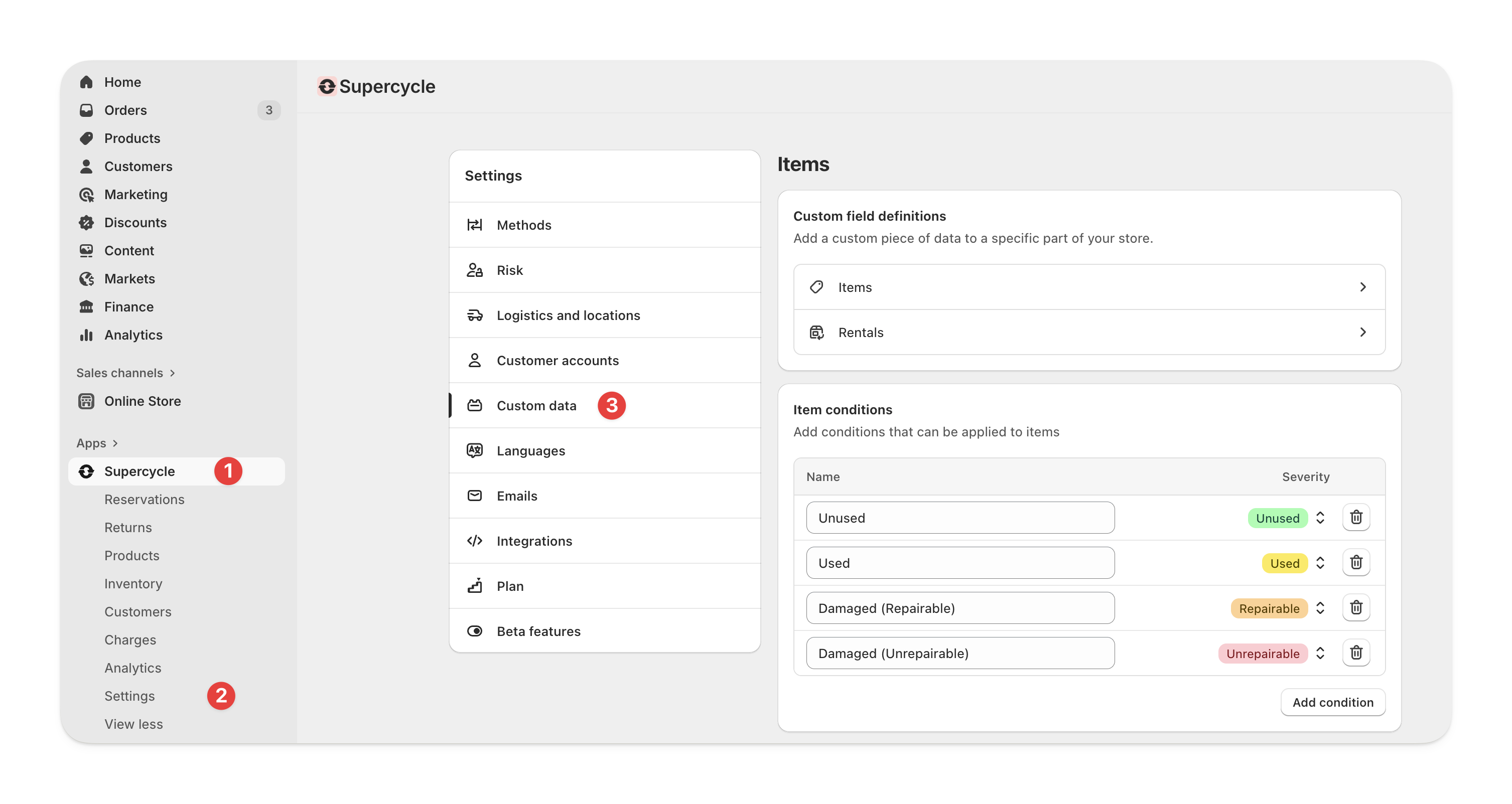 Click **Add condition** and set its name.
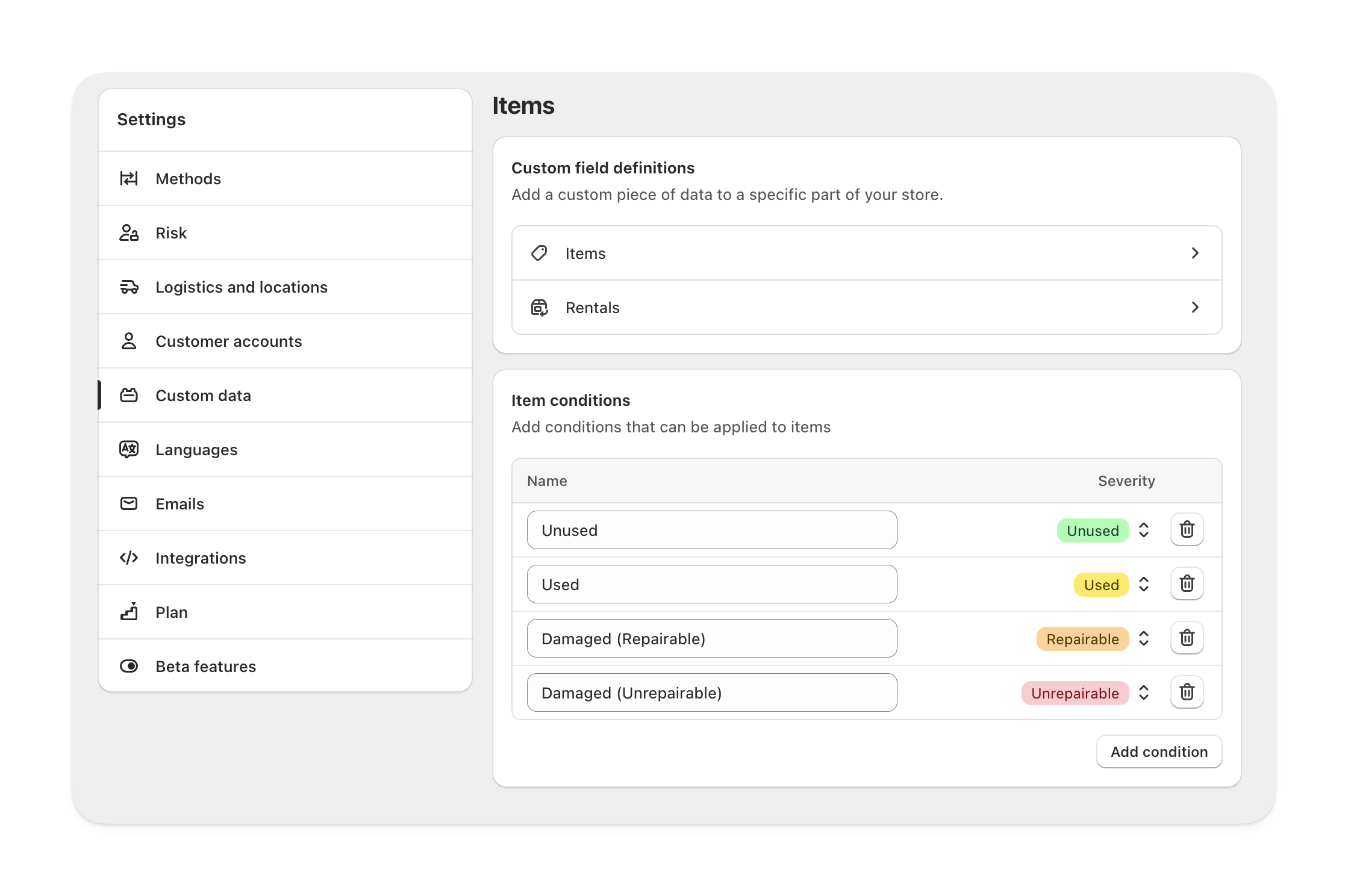 Condition severities are used by Supercycle to trigger customizable actions.
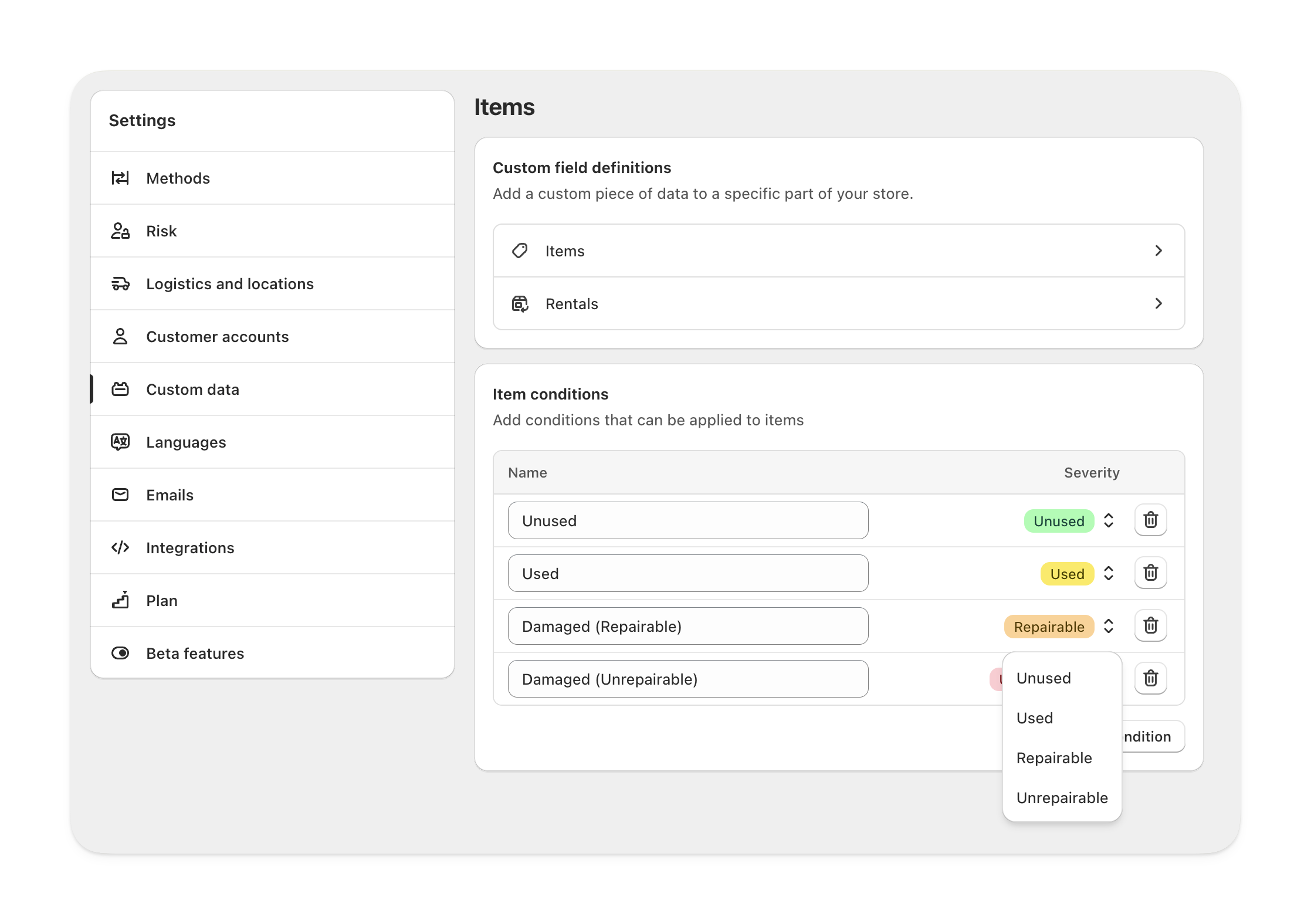 #### Update item condition
Update condition from the [Item](/documentation/manage/inventory/items#condition).
**Update condition** action from the **Actions** options on the [Inventory](https://admin.shopify.com/apps/supercycle/items) table.
#### Update item condition
Update condition from the [Item](/documentation/manage/inventory/items#condition).
**Update condition** action from the **Actions** options on the [Inventory](https://admin.shopify.com/apps/supercycle/items) table.
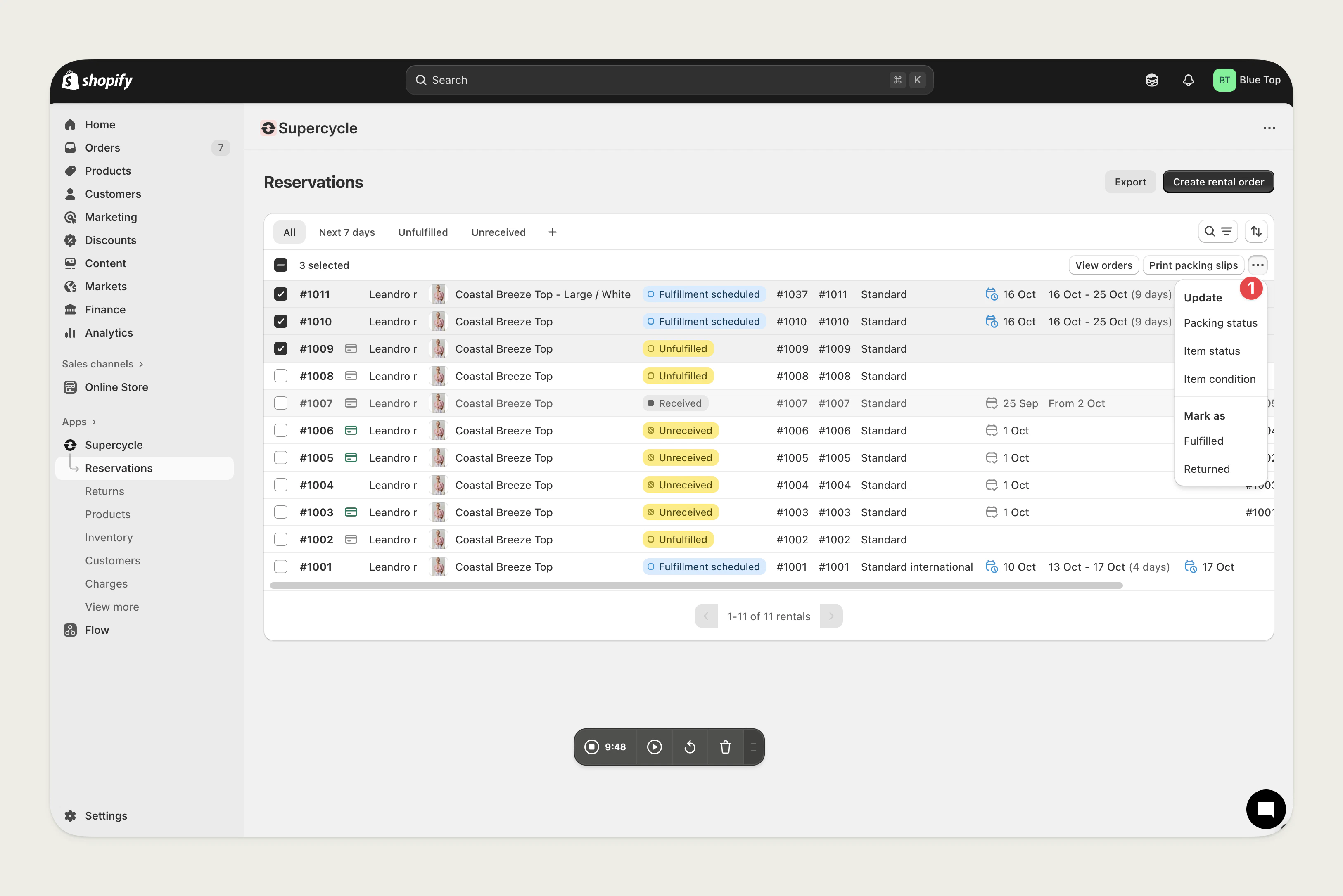
 **Update item condition** action from the **Actions** options on the [Cycles](https://admin.shopify.com/apps/supercycle/cycles) table.
 Use the [**Update item**](/documentation/manage/automation/automation#update-item) action in a workflow. Pass `rental.item.id` from a cycle trigger and the target condition's GID as `conditionId`. See [Update item condition after first cycle](/documentation/manage/automation/create-workflow#update-item-condition-after-first-cycle) for a walkthrough.